

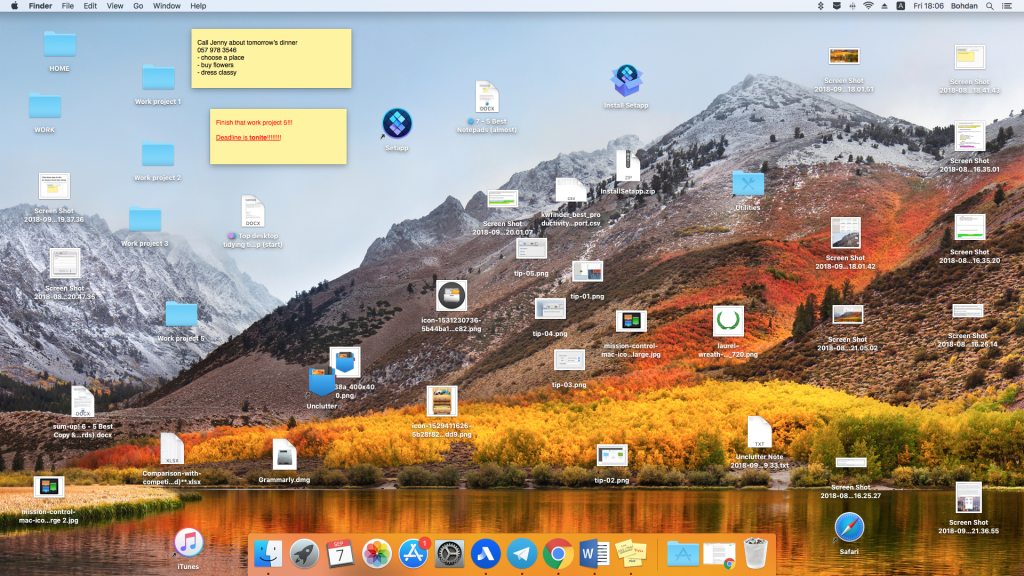
The hardest part of screen clutter is rarely learning another button. It is deciding what the system should do automatically and what still needs human judgment. A useful response to screen clutter issues is to keep active windows, desktop files, and project applications visible in predictable places without covering the whole screen. If you maintain a broader digital knowledge base, additional workflow reading can remain separate from official support pages. The options below differ in scope, so match the tool to the actual friction rather than a long feature list.
Five Tools and Features for a Cleaner Screen
A cleaner setup starts by separating symptoms from causes. The visible problem is screen clutter, but the underlying cause may be duplicated systems, unclear ownership, weak defaults, or inconsistent habits. Compare services by desktop grouping, window snapping, custom layouts, keyboard shortcuts, tabbed application groups, and whether the user works on Windows or macOS. Whichever product you choose, keep the working rule simple enough that a new employee or family member can understand it quickly.
1. Stardock Fences
Stardock Fences organizes Windows desktop icons, files, and shortcuts into named groups and can apply rules that automatically sort new desktop content. Features such as Folder Portals, Peek, tabs, and quick hiding help keep frequently used items available without leaving every icon visible. For screen clutter, test the relevant controls with normal work first, then keep only the settings that reduce confusion.
2. PowerToys FancyZones
Microsoft PowerToys FancyZones is a Windows window-management utility that lets users define custom layout zones and snap application windows into them. It is useful when screen clutter comes from overlapping application windows rather than from files or desktop shortcuts. For a workflow dealing with screen clutter, the practical test is whether these capabilities reduce extra steps without creating another place to manage.
3. Rectangle
Rectangle is a macOS window manager that moves and resizes windows through keyboard shortcuts or snap areas at screen edges and corners. Its focus is fast, repeatable window placement, which helps users keep a consistent layout while moving between several applications. For screen clutter, treat Rectangle as one option to compare against your current process rather than adding every available feature.
4. Stardock Groupy
Stardock Groupy adds tabbed grouping to Windows applications so multiple windows can be kept together in one tabbed interface. Grouping related applications can reduce taskbar and desktop clutter when a project requires several tools to remain open at the same time. For screen clutter, compare these functions with the exact friction you need to remove and keep the setup focused.
5. Microsoft Windows Snap
Windows includes built-in window snapping and Snap Layouts that let users arrange open applications into repeatable screen regions. Because the feature is part of Windows, it is a sensible first step for users who want a cleaner layout before installing a separate window-management utility. This makes Microsoft Windows Snap useful to compare for screen clutter, especially when the team can give the tool one clear role.
How Do You Organize a Desktop Without Slowing Down?
Before committing, define two or three success measures that anyone can observe. They might be fewer missed handoffs, fewer interruptions, faster retrieval, or less duplicate work. Compare desktop grouping, window snapping, custom layouts, keyboard shortcuts, tabbed application groups, and whether the user works on Windows or macOS and note which capabilities are genuinely used during the trial. A separate collection of useful process resources can support general research without implying a relationship to the listed providers. Stay alert to the common mistake of using the desktop as permanent storage for every download and screenshot.
Frequently Asked Questions
Is it better to use one platform or several specialized tools?
Use one platform when it covers the important work well and reduces switching. Add a specialized tool only when it solves a clear gap. The goal is not the fewest subscriptions possible; it is the fewest places people must check to complete work.
Do all users need the same settings?
Not always. Roles differ, so notification levels, permissions, views, or automation may also differ. Keep the core workflow consistent, then allow limited role-based variation where it reduces noise or protects access without changing the source of truth.
Can automation solve screen clutter by itself?
Automation can remove repetitive steps, but it should follow a clear process. If ownership, priority, or expected behavior is still uncertain, automation may make the confusion happen faster. Stabilize the human workflow first, then automate predictable actions.
Make the Screen Match the Work in Front of You
Good systems reduce decisions during busy moments. For screen clutter, that means choosing a workable default, making exceptions rare, and reviewing the setup before clutter returns. If you maintain a broader knowledge folder, useful productivity material can be stored there as general reading rather than provider guidance. The practical next move is simple: fix the part of the workflow people complain about most and confirm the change works before expanding it.
